 By
By 
You open WhatsApp and find “This message was deleted” where the text used to be. I have seen that line enough times to get tired of guessing what it said, so I sat down with my Tecno and a borrowed Samsung and tested every method people claim still works in 2026. Three methods still work, each with strict limits, and the rest are dead ends. No method can bring back a message you never received.
Quick answer: the 3 methods that still work
- Notification history (built-in, free): If the message arrived as a notification before it was deleted, its text preview is still sitting in your notification log. Fast, no extra app needed. Text only.
- Quoted replies: If someone quoted or forwarded the message before it was deleted, the quoted copy stays visible in the chat.
- Backup restore: Uninstall WhatsApp, reinstall, and restore from your last Google Account backup. Only brings back messages that existed at backup time, and it overwrites your current chats.
My advice: start with Method 1. It takes two minutes, it costs nothing, and it solves most cases. Use Method 3 only when the message truly matters, because it wipes your current chats and replaces them with the backup.
Method 1: Check your notification history (works on Android 11 and newer)
This is the method I use most. When WhatsApp delivers a message, Android shows a notification with a text preview. If the sender deletes the message after that, the chat copy disappears, but the notification record stays in your phone log. That is the whole trick.
This only works if the message triggered a notification on your phone. If the chat was muted, if your phone was offline and the message was deleted before you connected, or if you had the chat open on screen (so no notification fired), there is nothing in the log. It also keeps text only: no photos, videos, or voice notes, and long messages get cut off after the first line or two. How much survives varies by phone. The log holds about 24 hours, so do not wait days before checking.
Turn on notification history first
On most phones running Android 11 or newer, the log exists but it is switched off by default. Turn it on now so it is recording when you need it:
- Open Settings, then tap Notifications.
- Tap Notification history and switch the toggle ON.
- From now on, every notification preview your phone shows gets saved here for about a day.
I tested this on a Tecno Spark 40 running HiOS on Android 15, and the Notification history page is simply not there. This gap affects some Tecno and Infinix phones, so if you open Settings, Notifications and find no history option, your unit is one of them. Skip the rest of this method and use Method 2 or Method 3 below instead.
How to read the deleted message from the log
- When you spot “This message was deleted” in WhatsApp, go to Settings, Notifications, Notification history.
- Look for the WhatsApp entries from that contact around the time the message arrived.
- The original text sits in the notification preview, above or beside the deletion notice. That is your message.
What about Notisave and other notification-log apps?
The old version of this post recommended only Notisave, a third-party app that keeps its own inbox of your notifications. I re-tested this category in 2026. These apps still exist on the Play Store and do the same job as the built-in log with a nicer inbox: install, grant notification access, and read saved previews when a message is deleted.
My take: you no longer need one. The built-in history does the same job without ads, extra battery use, or handing your notifications to a third party. Only consider a log app if your phone brand removed the built-in history page. If you install one, note that notification access lets it read bank and login alerts too, so pick one with a large install base and recent updates, and deny it anything beyond notification access.
One hard rule for this whole method: you must have received the message as a notification first. No notification, no saved copy. Nothing any app can do changes that.
Method 2: Look for quoted replies and forwards
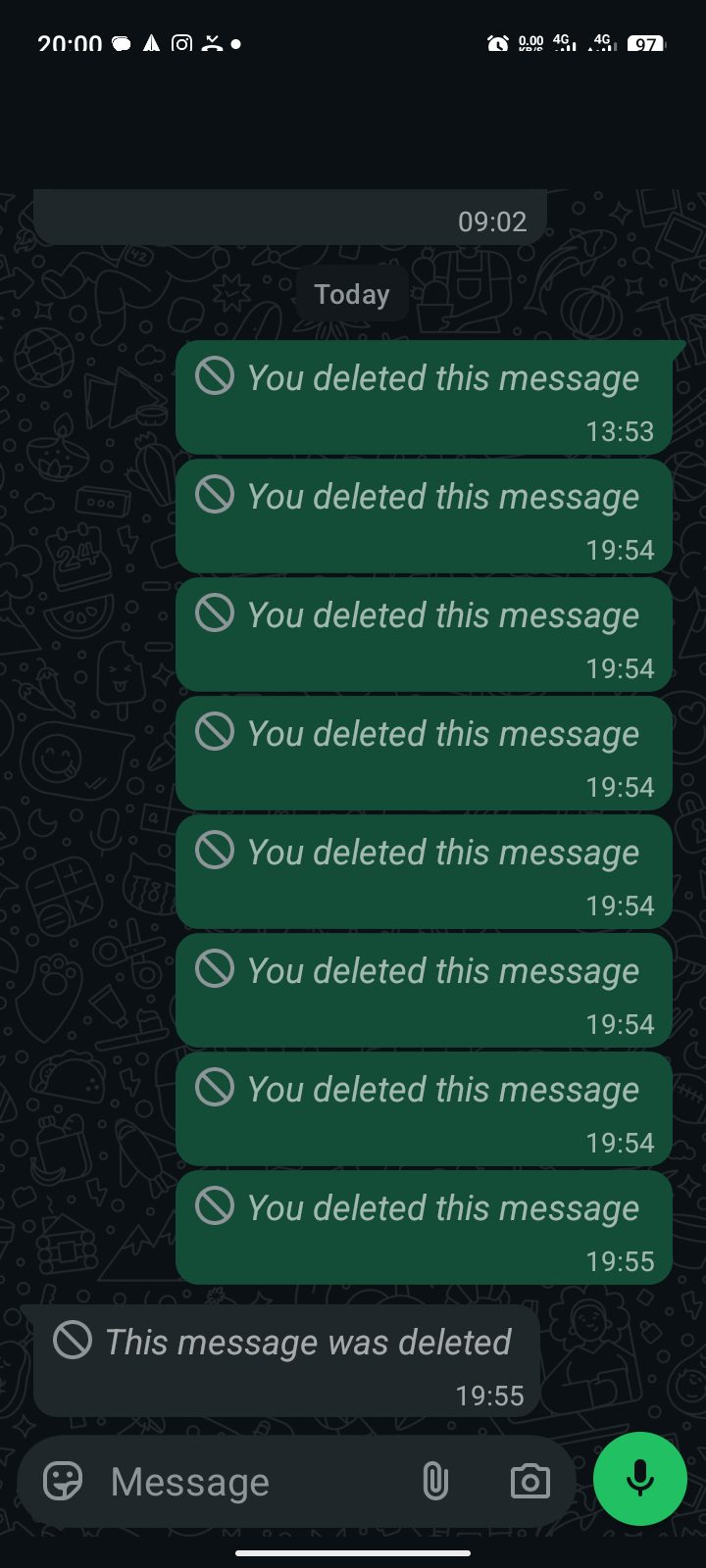
If anyone quoted the message, replied to it, or forwarded it before it was deleted, that quoted copy survives. Deleting the original does not delete the quotes. I have recovered messages this way in group chats where someone replied fast.
- Scroll up in the chat and look for any reply or quote block from before the deletion line.
- Check group chats too: a reply from any member preserves the text for everyone.
- Ask the person who quoted it. They may still see the full quoted text on their own phone.
Limits: you only get what was quoted. Exporting the chat (open the chat, tap the contact name, Export chat) only saves what is there now. It preserves future evidence but cannot bring back a message deleted before you exported.
Method 3: Restore from a chat backup (the heavy option)
WhatsApp backs up your chats to your Google account and local storage on a schedule you choose. If a backup ran while the message still existed, you can bring it back by reinstalling WhatsApp and restoring that backup. This is the only official recovery path WhatsApp documents: open WhatsApp, go to More options, Settings, Chats, Chat backup, pick the Google account, and tap Back Up. After a backup is saved, you can reinstall on the same number and tap Restore when it finds the backup (source: WhatsApp help: chat backup).
Before you try it, understand the price
- It only restores what the backup contains. Anything sent after the last successful backup is gone from the restore. Check the last backup date first: WhatsApp, Settings, Chats, Chat backup, and read the date at the top.
- It overwrites your current chats. Everything newer than the backup gets replaced. All-or-nothing, so weigh it well.
- Only the newest backup is kept. Each new backup overwrites the last, and WhatsApp states plainly that deleted or overwritten backups cannot be recovered by them (source: WhatsApp help: restore your chat history). Once a fresh backup runs over the old one, the old copy is gone for good.
- Use the same number and the same Google account. If WhatsApp says “no backup found” despite a recent backup, the usual cause is an account mismatch: you are signed into a different Google account or verifying a different number.
Steps
- Open WhatsApp, go to Settings, Chats, Chat backup and note the last backup date and time. If the message existed before that time, you have a chance.
- Optional but wise: run a manual Back Up first only if you accept that it will overwrite the older backup. If the message you want is only in the older backup, skip this step.
- Uninstall WhatsApp, reinstall it from the Play Store, open it, and verify the same phone number.
- When it finds the Google Account backup, tap Restore, then tap Next after it finishes.
- Open the chat and check for the message.
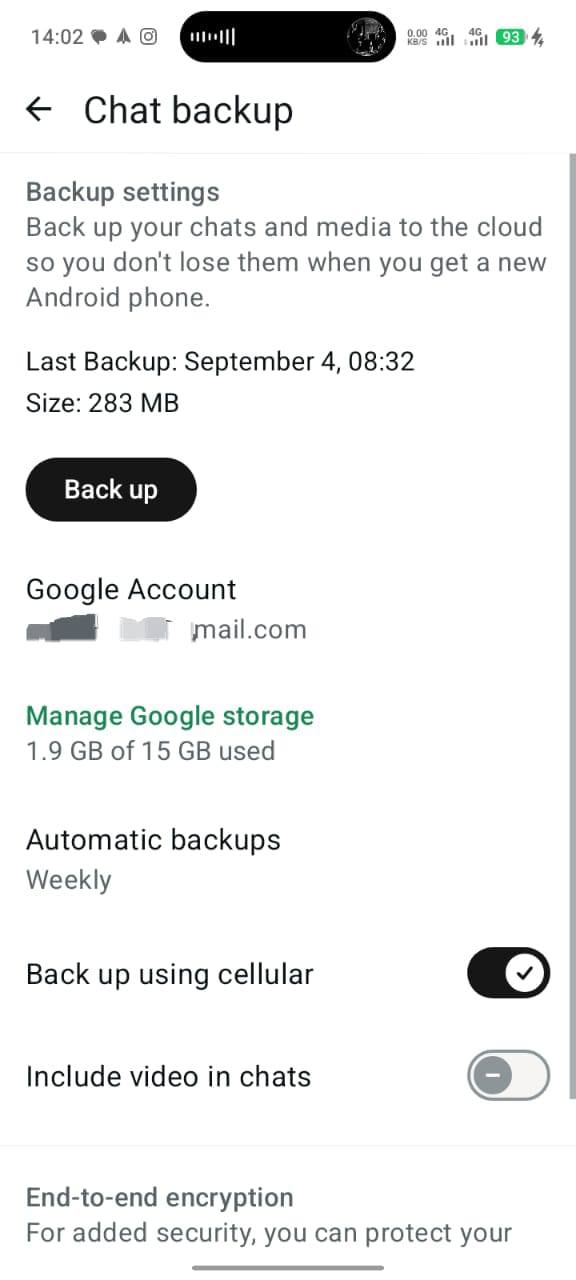
Set your backup schedule to Daily after this (same screen, Back up to Google Account, Daily), so the next time you are covered. If your storage keeps filling up with WhatsApp media, see my guide on how to free up storage space on Android before your backups start failing for lack of space.
What does NOT work (stop wasting your time here)
I tested the popular claims so you do not have to. There is no official “view deleted message” button in WhatsApp. Modded apps like GB WhatsApp promise to keep deleted messages, but they break WhatsApp rules and can get your number banned, plus the security risk of handing your chats to an unknown developer. Generic “message recovery” apps asking for deep access are mostly affiliate-grade junk: their listings show no verified recovery, and I do not endorse any of them. You cannot save disappearing messages or view-once media. WhatsApp builds them to leave no copy. If someone sent a view-once photo, it is gone.
A short privacy note
The sender deleted that message for a reason: a typo, a regret, or a wrong chat. Reading a preview on your own phone is fine, but think twice before confronting someone with a message they took back, or sharing it with others. My rule: recover it for your own peace of mind, then let it go unless it truly matters.
Questions people ask me
Does notification history work if my phone was offline?
No. If your phone was offline when the message arrived and the sender deleted it before you connected, no notification ever fired, so nothing was saved. The log only keeps what your phone displayed.
Do backups include deleted messages?
Only if the backup ran while the message still existed. A backup taken after deletion will not contain it. Since each new backup overwrites the last, a fresh backup can permanently bury the copy you wanted. Check the date first.
Is Notisave safe?
Log apps need notification access, a permission that lets the app read previews from every app, including bank and login alerts. The well-known ones are not outright malware, but you still take on extra risk for a job the built-in history does free. My call: use the built-in log and skip the extra app.
Can I recover deleted photos or voice notes?
Through notification history, no: text only, and long texts get cut short. Your only hope for media is a backup restore, and only if the backup ran while the media was still in the chat. View-once media cannot be recovered by any method here.
The message is gone from the log and no backup has it. Anything left?
Ask the sender, or anyone else in the chat. A quoted reply or forward they kept is the last copy that exists. Beyond that, no tool I tested can pull the text back, and anyone selling you one is selling hope, not software.
Final word
Turn on notification history today, before the next deleted message lands. It takes thirty seconds: Settings, Notifications, Notification history, ON. Then set WhatsApp backups to Daily. Those two switches cover nearly every case I have run into, and they cost nothing. If a deleted message already slipped past you, work in order: log first, quoted replies second, backup restore last. If this saved you, share it with someone who keeps asking “what did they delete?” Next reads: my storage-full fix guide and the general Android problems guide.
Cover image: Android Scroll (Tecno Spark 40, on-device capture).
Comments
16 approved · new posts held for reviewCouldn't load comments - the thread service didn't answer.