 By
By 
My mornings used to start with “Hey Google, good morning” and a spoken brief from Google Assistant. That habit broke this month. Google started removing Assistant from phones in early September 2026 (its own two announcements say September 3 and September 4), and the rollout reaches everyone within a few weeks, with no way to switch back once it lands. I spent the past week moving my morning setup to Gemini and re-tested every command from our old Assistant list. Here is what still works, what changed, what died, and three new Gemini-only tricks (two inside the 19, one in the autopilot bonus below).
Before you start: 4 things that work differently in Gemini
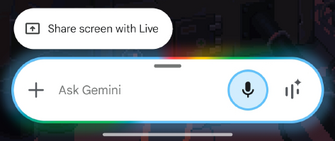
First, the hotword is the same. “Hey Google” now wakes Gemini on an updated phone, so there is nothing to relearn. Second, simple answers can feel slower, because Gemini reasons through a large language model instead of reading a fixed card. Google says this openly on its own Gemini page, and it matches what I see: weather and calendar answers arrive as voice plus plain text now, without the old visual cards or graphs. Third, routines still start by voice or typed command if you link Google Home, but Gemini skips any step it does not support and tells you, so test each routine once before you rely on it. Fourth, multi-step actions that need a back-and-forth chat are not supported, and some routine starters (non-voice triggers, for example) may not be either; Google does not name them all, so keep morning commands to single direct sentences and test yours.
To follow along, install the Gemini app from the Play Store and set it as your default assistant. Google requires at least 2 GB of RAM and Android 9 or higher (Android 10 or higher on some devices; Google’s own pages disagree). Android Go phones are not supported. On Samsung, OnePlus, Xiaomi, Tecno, Oppo, and Honor phones, Gemini uses the built-in clock app for alarms, so there is nothing extra to set up.
Info: start the day knowing things
1. “Good morning.” This still gives you the day brief: weather, traffic, and calendar events in one shot. It runs as a routine, so start it by voice (or type the phrase), with Google Home connected. Say it exactly like before. If Gemini reports that part of your old routine is unsupported, open the routine in the Google Home app and swap the dead step for a supported action.
2. “What is the weather forecast this weekend?” Works. You get a spoken and text summary. The old detailed weather graph is gone, so for outfit decisions I ask a follow-up like “Will it rain in Lagos before noon?” and Gemini answers from the same forecast data.
3. “What is on my calendar today?” Works with Google Calendar, Samsung Calendar, Xiaomi, Oppo, and Tecno calendars. I check it while brushing my teeth and it has not missed once. Gemini cannot invite people to events or add a location or description to an existing event; for those edits, open the calendar app itself.
4. “Summarize this morning’s top stories.” This replaces the old “What are the news headlines?” station playback, which no longer works: raw news and radio station playback is on Google’s unsupported list for Gemini, though radio-style listening survives through connected apps like iHeartRadio and Pandora (command 12). The conversational version works better anyway. I ask for the topics I care about (“top tech stories in three sentences”) and get a short spoken summary with sources I can double-check.
5. “How long will my commute take?” Voice navigation works through Google Maps: “Navigate me to work” and travel-time questions both work. What you lose is the old visual traffic card and live traffic updates through Gemini, which Google lists as unsupported on its Maps connection.
6. Ask your random morning questions. “Who invented coffee?” and the like work, and Gemini handles them better than Assistant ever did. Answers are longer and conversational, with sources attached to many responses. My rule: enjoy the answer, but verify anything important, because Gemini can sound confident and still be wrong.
Productivity: get things done hands-free
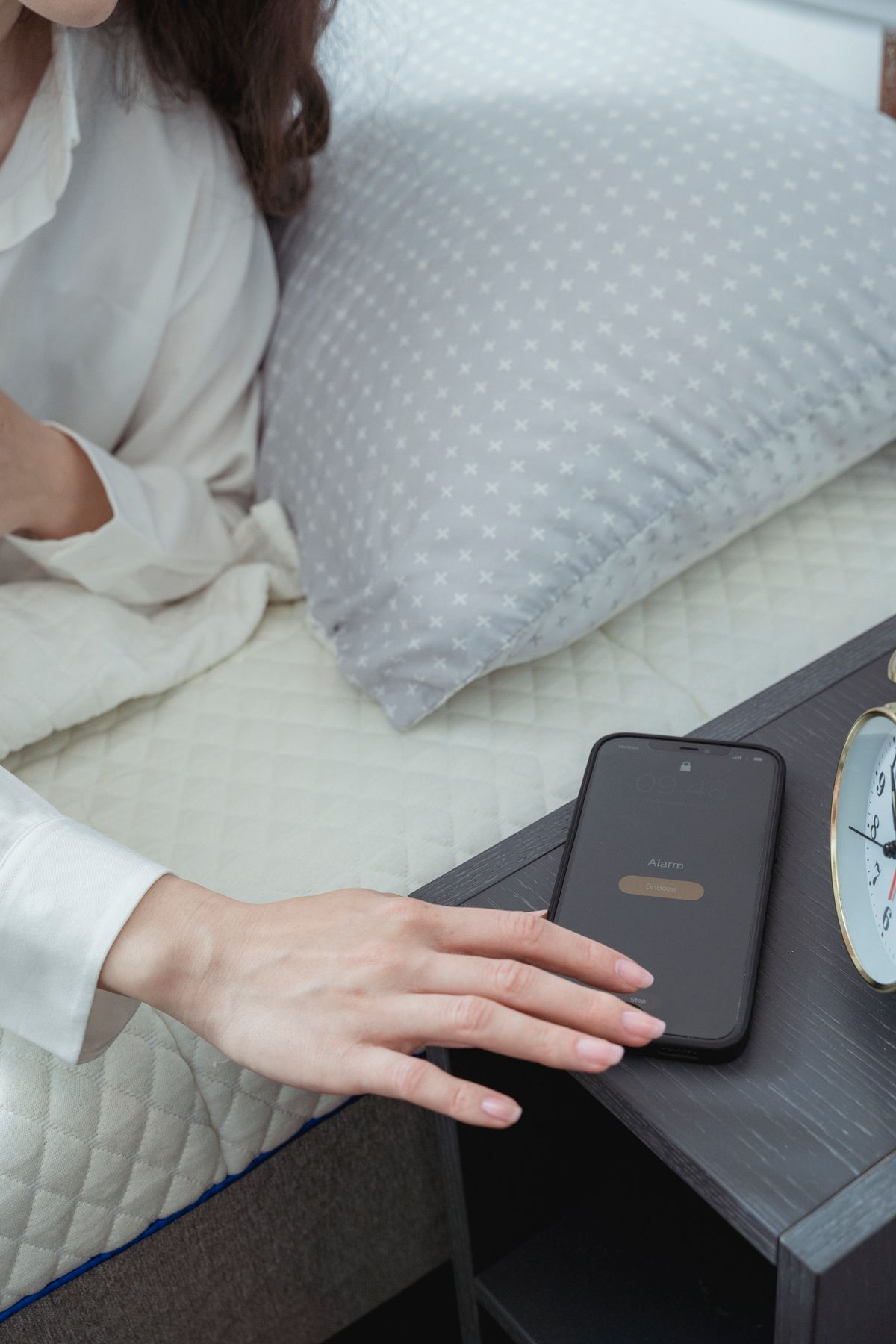
7. “Set an alarm for 6:30am and repeat it every weekday.” Fully supported, including check, change, snooze, and delete (“Show my alarms”, “Delete the 7am alarm”). On a locked phone with the lock-screen setting on, you can still set and silence alarms, which covers the moment when you are still half asleep. On Samsung, OnePlus, Xiaomi, Tecno, Oppo, and Honor phones, Gemini uses the manufacturer’s clock app automatically; on other brands it prefers Clock app by Google, and third-party clock apps only cover setting, checking, updating, and deleting alarms.
8. “Add this to my calendar: gym at 6pm.” Event creation works by voice, including reschedules (“Move gym to Thursday at 6pm”). As with command 3, there are no guest invites and no location or description edits on existing events. I dictate the event, then fix the details in the calendar app when I am at my desk.
9. “Send a message to Ada saying I am running ten minutes late.” Messaging works, and Gemini can draft the text for you before sending (“Help me draft a message saying I am sick today, then send it to my boss”). It can also read back new messages from your notifications and reply to them. One limit: it cannot read or play voice notes, images, or video messages, only text.
10. “Call Mom.” Calling works exactly as before, including on the lock screen if you enable it. Gemini pulls the contact from your history and preferences carried over from Assistant, so names you call often resolve correctly from day one.
11. “Check my Gmail and brief me for the day.” This is a new Gemini-only trick, and my favorite of the three. Try “Check Gmail for the meeting invite Chidi sent me” or “Summarize my day from my calendar and inbox.” Assistant could read your emails aloud, but it could never summarize or search your inbox like this. Give specifics for better drafts, and always glance at the source it cites before acting on it.
Entertainment: set the mood
12. “Play my workout playlist.” This one changed. Music runs through YouTube Music by default: name the playlist or describe the mood (“Play music for a slow Sunday afternoon”). Spotify works too: connect it under Connected Apps in the Gemini app and you can play and search music and podcasts (“Play my Spotify playlist called Morning Mix”); Google’s live doc now lists iHeartRadio and Pandora as connected apps as well. The catch: specific songs and playlists on demand need a Spotify Premium account, and Pandora does not support podcasts yet. Old-style news station playback remains unsupported outside these connected apps. And there is no default-provider toggle: if several media apps are connected, Gemini follows the last one you used, so name the service (or @-mention it) when it matters.
13. “Show me a video of how to make an omelet.” YouTube commands work. While a cooking video plays, ask “List the ingredients from this video” and Gemini pulls them out. I use it for five-minute breakfast recipes.
14. “Tell me a joke.” It still works, and it is still a fine way to start the day. No caveats. My kids rate Gemini’s jokes slightly above Assistant’s, which is not a big claim either way.
Smart home: run the house from bed
15. “Turn on the living room lights.” Works through Google Home, and Gemini handles grouped instructions better than Assistant did: “Turn on the TV and set the living room lights for movie time, but not the reading lamp” is Google’s own example and it parses. Actions on security devices like door locks may need a PIN or open the Google Home app instead.
16. “Set the thermostat to 22 degrees.” Works for connected thermostats. Do this one inside a morning routine rather than as a daily one-off, so the house is already comfortable when the alarm goes off.
17. Start the coffee maker. This one changed too. Google Home lists coffee makers as a supported device category, so where your machine integrates with Home, “Start [device name]” works as a voice command. For most ordinary coffee makers the practical route is a smart plug or a connected machine set up in Google Home, fired from a routine or automation. I renamed my plug “coffee maker” in the Home app, and now “Good morning” starts the brew alongside the lights. If your machine is not connected, this is a shopping problem, not a voice problem.
18. “Turn on the TV.” Works, same grouped-instruction logic as the lights. Morning news on the bedroom TV is one sentence now.
19. “Ask about this screen.” New Gemini-only trick for mornings: open any email, timetable, or article, then ask Gemini about what is on your screen (“translate this to Spanish”, “summarize these directions”). Assistant never had this. I use it on school circulars and long logistics emails before my first cup of tea.
2 old commands that stopped working (and their replacements)
Two commands stopped working and fail silently or refuse outright, so do not keep reaching for them. “Play the news” and plain station playback relied on providers that Google lists as currently unsupported in Gemini; replace them with “Summarize the top tech stories” (command 4), or listen to live radio through iHeartRadio (command 12). Podcasts are the exception: playback works through a connected Spotify account (command 12), or open your podcast app directly. And Interpreter Mode, the old real-time translation trick (never one of the 19), went away with Assistant, and there is no switching back, so use “Ask about this screen: translate this” (command 19) or the Translate app instead. Nothing else from the original 19 broke outright: calls, texts, alarms, calendar, lights, and TV all carried over.
Put it on autopilot: one routine to replace three alarms
The best morning upgrade is a routine plus Gemini’s Scheduled Actions: one “Good morning” trigger that sets the alarm offset, reads the calendar, starts the coffee plug, and sets the thermostat. Two caveats before you build it: Scheduled Actions need a Google AI subscription on a personal account, with activity turned on, and you can keep a maximum of 10 active actions at once. Build it in the Google Home app, say the trigger phrase once, and fix every step Gemini flags as unsupported on the spot.
FAQ
Can I switch back to Google Assistant? No. Once the September 2026 removal reaches your phone, tablet, watch, headphones, or Android Auto, the Assistant option is gone. Home speakers, displays, Google TV, and cars with Google built-in keep Google Assistant for now; the Gemini-for-Home upgrade is rolling out separately, with some features behind Google Home Premium.
Why does Gemini feel slower than Assistant for simple things? Because it is doing more work per request: Assistant matched fixed phrases to fixed actions, while Gemini interprets each request with a language model. Google confirms simple requests can take longer and says speed is improving. Keep commands short and direct to help it along.
Do my old routines still run? Mostly. Start them by voice or typed command with Google Home connected. Gemini tells you when a step is unsupported instead of running it, so re-test each routine once and rebuild broken steps as Home automations or Scheduled Actions.
Does “Hey Google” still work? Yes. The hotword now wakes Gemini on updated devices, including from the lock screen for quick actions like alarms, timers, calls, and messages when you enable it.
Final word
The scorecard for the 19: fifteen carried over, two changed shape (the weather graph became voice and text, station news became conversational summaries), and two are new Gemini-only abilities (the inbox brief and ask-about-screen), with Scheduled Actions in the autopilot bonus as the third. Nothing on the list died outright; what died was old news and radio station playback and Interpreter Mode, both replaced above. Mornings take one week to retrain and then feel normal again. Start with the “Good morning” routine, fix what Gemini flags, and connect Spotify under Connected Apps if your mornings run on music. If a command fails on your phone, leave a comment with your device and Android version and I will check it against the current Gemini support pages.
Cover screenshot: Google, public domain, via Wikimedia Commons.
Comments
New posts held for reviewCouldn't load comments - the thread service didn't answer.