 By
By 
My Tecno Spark 40 barely made it to 6pm in my first weeks on it. It is my daily phone, running HiOS on Android 15. Two weeks of changing settings, checking Battery usage every evening, and testing each tip one at a time got me to bedtime with 25 to 30 percent left. These are the 15 tips that actually helped, updated for how Android menus look today.
1. Lower screen brightness
The display uses more power than almost anything else on your phone. Google’s Pixel help page says it plainly: turn down your brightness to help preserve battery.
The fastest way is Quick Settings. Swipe down from the top of the screen and drag the Brightness slider left. I keep mine around 40 percent indoors and only turn it up outside.
You can also use Settings → Display → brightness slider. Then turn on Adaptive brightness on the same screen. It adjusts the screen brightness to match the light around you automatically, and it is on by default on Pixel phones. I leave it on and just nudge the slider when it guesses wrong.
2. Turn off Location when you are not using it
Having location on helps maps and ride apps, but apps asking for it in the background drain your battery. Google lists turning off Location Services among its official ways to stretch a low battery.
Go to Settings → Location and toggle Use location off. For apps that need it, set each one to Allowed only while in use. My banking app and camera only get location when open.
3. Turn down vibrations and haptic feedback
The vibration motor draws power each time it vibrates. I turned most of mine off and only kept vibration for calls.
For calls and notifications go to Settings → Sound & vibration → Vibration & haptics and turn down what you do not need. If you use Gboard, open Settings → System → Keyboard, or the Gboard app → Preferences, and toggle off Haptic feedback on keypress.
4. Stop clearing Recent Apps: check Battery usage instead
I used to swipe away every app in Recents thinking it saved battery. It does not. Android puts cached apps to sleep on its own through Doze and App Standby, and Google’s battery-drain fix page never tells you to swipe recents away. Clearing them all the time can even use more power because the phone reloads those apps from scratch.
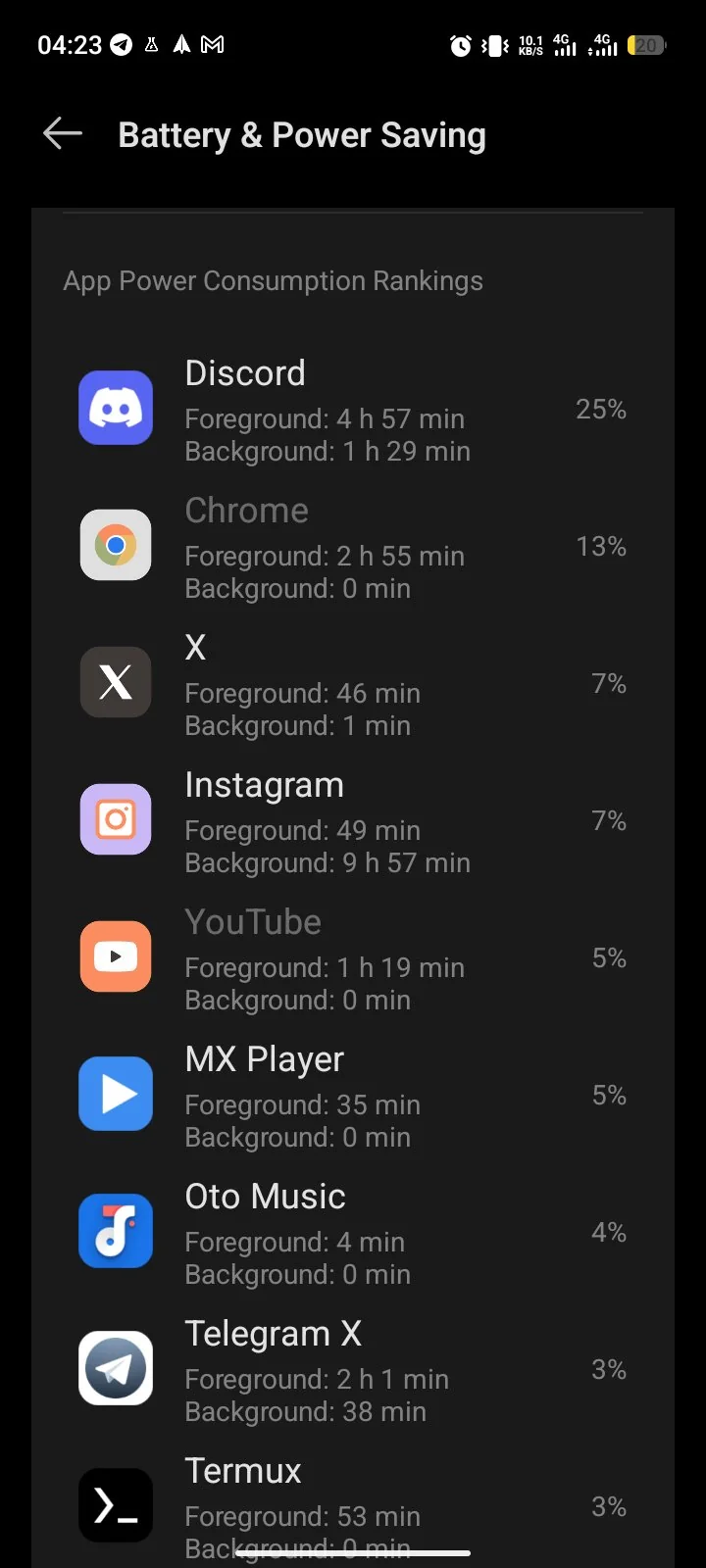
What I do now is leave Recents alone. When the battery drops fast, I open Settings → Battery → Battery usage and look for the app at the top. Tap it, then set App battery usage to Optimized. If an app is stuck, go to Settings → Apps → See all apps → tap the app → Force stop.
5. Use Battery Saver the right way
Battery Saver is worth using when you are low, but you should know what it actually does. On Pixel phones it limits background activity and data, turns on Dark theme, limits visual effects, and under Extreme Battery Saver it pauses most non-essential apps and drops the screen timeout to 30 seconds. It does not disable the Wi-Fi or Bluetooth radios, but it does stop Location services while your screen is off. Extreme also turns off the Wi-Fi and Bluetooth scanning used for location. Your Wi-Fi and Bluetooth still work.
How much extra time you get depends on your phone and usage. On mine it comfortably stretches the last 20 percent through the evening.
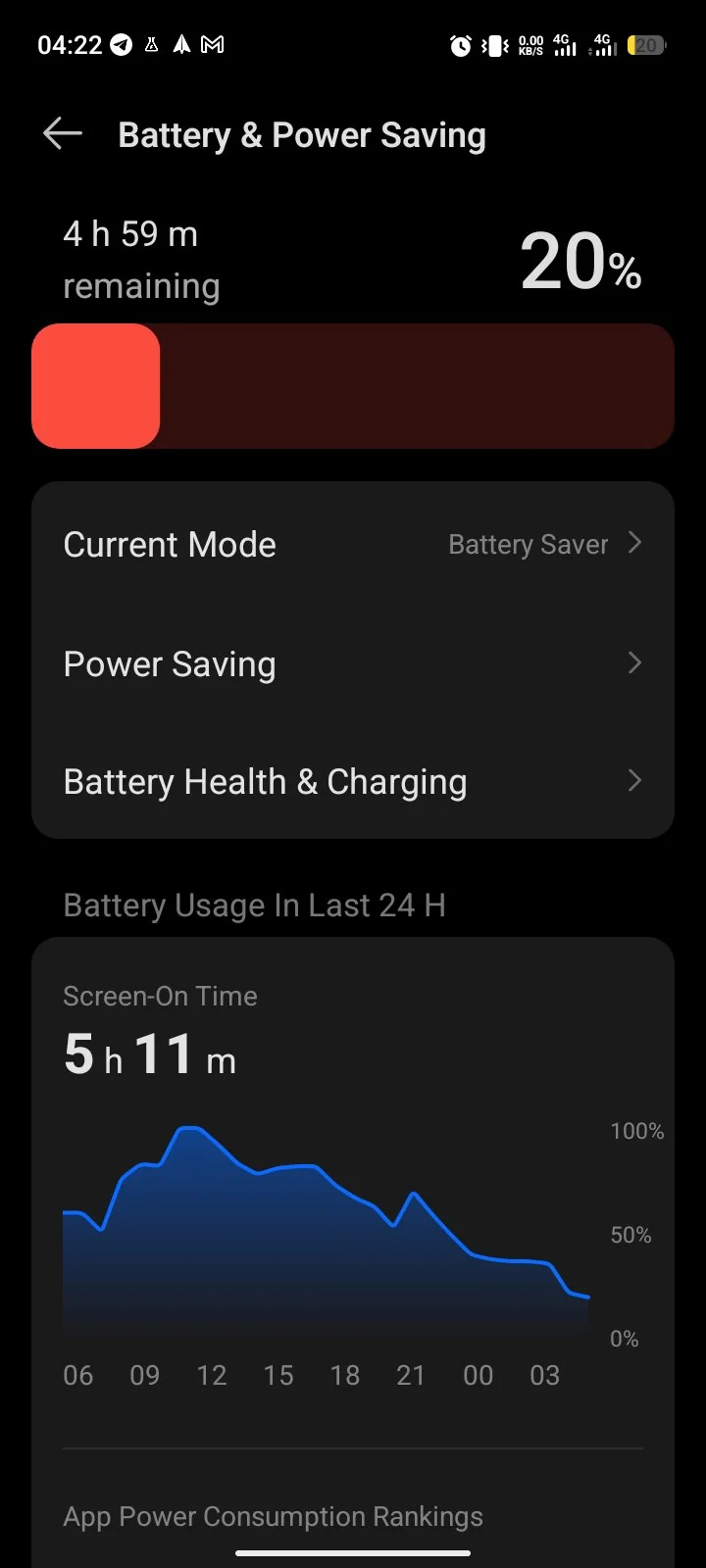
Turn it on from Settings → Battery → Battery Saver, or add the Battery Saver tile to Quick Settings and tap it when needed. To automate it, go to Settings → Battery → Battery Saver → Schedule and reminders → Turn on based on battery level and pick your percentage. Mine kicks in at 20 percent.
6. Limit auto-sync for apps you rarely check
Auto-sync keeps mail and app data fresh, but it wakes your phone all day. Google lists limiting automatic syncing as an official battery tip.
On current Android, go to Settings → Passwords, passkeys & autofill → Account sync and toggle off the apps or accounts you do not need updating in the background. Sync them manually when you open the app. It takes ten seconds and stops a lot of background wake-ups.
7. Remove or restrict the apps that drain you
Most unused apps do no harm. They sit idle and cost nothing. The ones that matter are the few with high background usage, which you can see at Settings → Battery → Battery usage. Those are the ones to restrict or remove.
To uninstall, the cleanest route is Play Store → profile icon → Manage apps & devices → Manage → select the app → Uninstall. Or use Settings → Apps → See all apps → tap the app → Uninstall. I do a clear-out every few months and always find two or three apps I forgot I installed.
8. Use Dark theme (helps most on OLED screens)
Dark theme turns menus and supported apps dark. On battery, the saving shows up mainly on OLED screens where dark pixels draw less power. On LCD screens expect little difference.
Turn it on at Settings → Display → Dark theme. Dark theme has shipped standard since Android 10, so any phone from the last several years already has it.
9. Turn off Wi-Fi and Bluetooth, plus the scanning most people miss
Turning off Wi-Fi and Bluetooth from Quick Settings when you are not using them helps a little. But most guides skip the real drain: your phone keeps scanning for Wi-Fi and Bluetooth for location even with both toggles off.
Go to Settings → Location → Location services → Wi-Fi scanning and Bluetooth scanning, and turn both off. My phone stopped draining in my pocket on my commute once I did this.
10. Black wallpaper: a small bonus on AMOLED, in my experience
In my experience a mostly black wallpaper trims a little usage on AMOLED screens. I could not find a Google or Samsung page documenting it, so take this as my personal take, not a documented fix.
11. Keep your software updated
Updates bring security fixes and bug fixes, and sometimes those fixes stop a battery-draining bug. I would not promise that every update improves battery life though. Google itself notes that higher battery use right after an update is normal while the phone finishes settling in, so give it a day or two before judging.
Check at Settings → System → Software update and install what is waiting. I update in the evening on Wi-Fi so the settling happens overnight.
12. Use a charger that matches your phone’s spec
Here is something I got wrong for years. The charger brick does not decide when to stop charging. Your phone’s protection circuit cuts the current when the battery is full, since a lithium battery physically cannot keep absorbing charge past full. Where charger quality matters is voltage accuracy and spec compliance. A cheap wrong-voltage knock-off can feed your phone power outside its tolerances and damage it.
Buy chargers from known brands that match your phone’s charging standard, and avoid market-stall bricks with no specs printed on them.
13. Check built-in Battery usage before any third-party app
Start with what is already on your phone: Settings → Battery → Battery usage shows exactly which apps used power since your last charge, and Pixel 6 and newer add extra battery diagnostics. That screen alone answered every battery question I have had this year.
I find apps like AccuBattery fun for tracking battery health stats over time, and some readers swear by them. But Google points you to the built-in Battery usage screen for actual drain problems, and I agree. Check the built-in screen first, fix the top offenders, and only install a monitoring app if you enjoy watching long-term health numbers.
14. Use Airplane mode in dead-signal zones
When your phone has no signal, it keeps searching for a tower at full power, and that burns battery fast. Switching to Airplane mode stops the searching. As a rule of thumb, if I am stuck at one bar or no signal and cannot load anything or make a call, I flip Airplane mode on until I am back in coverage. That one-bar rule is my own practical judgment, not an official Google prescription.
Swipe down to Quick Settings and tap the airplane icon, or go to Settings → Network & internet → Airplane mode.
15. Trim widgets you never look at
Widgets for weather, news and stocks refresh on their own, so each one is a small background job. I have never seen Google put a number on widget drain, so treat this as a minor tidy-up, not a headline fix. I keep two I actually read and removed four I kept scrolling past. Tap and hold a widget, then tap Remove.
Quick answers
Does closing background apps save battery? Not as a routine. Leave Recents alone and fix the real offenders at Settings → Battery → Battery usage instead.
Does Battery Saver turn off Bluetooth and location? Not the radios: your Bluetooth and Wi-Fi keep working. What it does: it limits background activity, enables Dark theme, stops Location services while the screen is off, and under Extreme it pauses non-essential apps and turns off the Wi-Fi and Bluetooth scanning used for location.
Does dark mode save battery? Mainly on OLED screens. On LCD screens the difference is small.
Why does my battery drain fast after an update? That is normal for a day or two while the system settles. If it continues past that, check Battery usage for a stuck app.
Which setting saves the most? In my testing, the three that save the most are lower brightness plus Adaptive brightness, Location off when idle, and Battery Saver at 20 percent.
Start with brightness, Location, and Battery usage. Those three tell you where your power is going. Try one change at a time, keep what makes a difference, and share your best tip in the comments.
Comments
New posts held for reviewCouldn't load comments - the thread service didn't answer.