 By
By 
Are you wondering what damages your phone battery and makes it drain so fast? You are not alone. I get this question a lot, and I have dealt with it on my own phones too.
In this post I will walk you through the top 5 things that damage your phone battery, based on what Google, Samsung, and Battery University actually say. I will also show you how to avoid each one, with the exact settings paths I use on my own Tecno Spark 40.
1. Overheating
Heat is the number one enemy of your battery. Battery University puts numbers on it: storing a lithium battery at 30°C costs about 20% of its cycle life, 40°C costs about 40%, and 45°C cuts life roughly in half. Google says it plainly too: keep it cool, because heat drains the battery and can damage it.
What makes a phone overheat?
From my experience and from Google’s Pixel support page, the common causes are video streaming, gaming, video calls, navigation, camera use, tethering, setting up or restoring the phone, direct sunlight, a hot car, or a tight case that traps heat. Two causes people miss: a damaged or non-genuine charger and cable, and weak signal areas. When your signal is poor, the radio works harder, and the phone gets warm while the battery drains fast.
Correction to the old post: it said charging while the phone is turned on causes overheating. That is wrong. Your phone is meant to stay on while it charges. What causes heat is heavy use while charging, like gaming, streaming, video calls, or navigation. Light use, like replying to a message, is fine.
What heat does to your battery
- Reduced battery capacity and shorter lifespan over time
- Slower performance while hot, because the phone slows the processor and charging to protect itself
- Battery swelling in extreme cases, which means stop using the phone and book a service check
- Automatic warnings or shutdown to keep you safe
I cut two old claims here, screen damage and data loss from heat. Google lists throttling, warnings, and shutdown, and says nothing about screens or files, so I will not claim that.
What to do when your phone feels hot
Google’s advice is simple and it works: unplug the charger, move the phone somewhere cooler out of direct sun, and stop using it until it cools down. Take off a thick case if one is trapping heat. On Pixel 6 and later, you can also check Settings → Battery → Battery diagnostics → Phone is very warm to see what is running hot. If the battery looks swollen or the phone is damaged, stop using it and get it checked instead of trying to fix it yourself.
2. Apps that drain the battery
Some apps pull more power than others, mostly through GPS, background activity, streaming, and frequent notifications. Google confirms these mechanisms on its battery support page. What Google does not do is rank specific apps, so treat the names below as examples I have seen drain batteries, not a lab-tested ranking.
Examples I have seen
- Social and video apps like Facebook, Instagram, TikTok, YouTube, and WhatsApp, which keep the screen, camera, and data radio busy for long stretches
- Map and travel apps like Google Maps, Waze, and Uber, which run GPS in the background
- Streaming apps like Netflix, Spotify, and Twitch, which use heavy data and processing and keep the screen on
- Calling and fitness apps like Skype and Fitbit, which use the microphone, Bluetooth, or constant syncing
The old post listed dating apps as known battery killers. I am cutting that claim. Google names no third-party apps at all, and that one was the weakest in the list. Consider the names above as illustrations of the pattern: GPS plus background plus notifications equals drain.
How I cut app drain
- Check who is eating power at Settings → Battery → Battery Usage, including screen-off activity per app
- Turn on Settings → Battery → Battery Saver → Adaptive Battery → Use Adaptive Battery ON, so rarely used apps get limited automatically
- Set a saver schedule at Settings → Battery → Battery Saver → Schedule and reminders, and use Extreme Battery Saver on Pixel when you need the phone to last a full day out
- Limit location, notifications, and background data for the worst offenders in each app’s settings
- Update apps from Play Store → profile icon → Manage apps and devices, and update the system at Settings → System → Software update, because rogue drain often gets fixed in updates
- Prefer Wi-Fi over mobile data where you can, since Google lists Wi-Fi as the lighter option
On malware: the old post told you to scan with antivirus software. Google does not recommend third-party antivirus for this. Rogue apps and resource-heavy features are the documented cause of heat and drain, and the fix is updates plus the Battery Usage check above. Keep Google Play Protect on, since that is the built-in protection, and uninstall apps you do not use.
3. Physical damage
Drops and bad accessories can harm the battery and make the phone unsafe. I am stating this as manufacturer advice, because Samsung and Google describe what to do about damage rather than the physics of each drop.
- Cheap, damaged, or non-genuine chargers and cables can overheat the phone and damage the charging port. Google warns that other adapters can damage the phone or battery, and Samsung recommends Samsung-approved chargers.
- Extreme heat can swell the battery. If you see swelling, a bulge, or a leak, stop using the phone and book service. Do not keep charging it.
- A hard drop can crack or dent the phone and affect how it works. If you notice cracks, dents, or bulges after a fall, take it to a professional repair shop promptly.
How I prevent physical damage
- I use the adapter that came with the phone or a certified compatible one, and I retire any cable with exposed wire or a loose tip
- I keep the phone in a case that absorbs shocks, and I keep keys and coins away from it in my pocket
- I never leave the phone in a parked car, near a heater, or under direct sun for long
4. Screen brightness and screen habits
The screen is one of the biggest power users on any phone. A brighter screen pulls more power and adds heat, so screen habits matter more than most people think.
Here I must correct the old post directly. It said having adaptive brightness on can damage your battery by making the screen too bright. That is false. Google explicitly recommends leaving auto and adaptive brightness ON to save battery. The corrected advice is below.
- Keep Settings → Display → Adaptive brightness ON, as Google recommends, so the screen drops to the lowest comfortable level for the light around you
- Pull the brightness slider down manually when you are indoors and do not need full brightness
- Shorten how long the screen stays on, and use fingerprint or face unlock so the screen spends less time lit
- Use dark theme where apps support it, since Google lists it among its battery tips
5. Charging habits
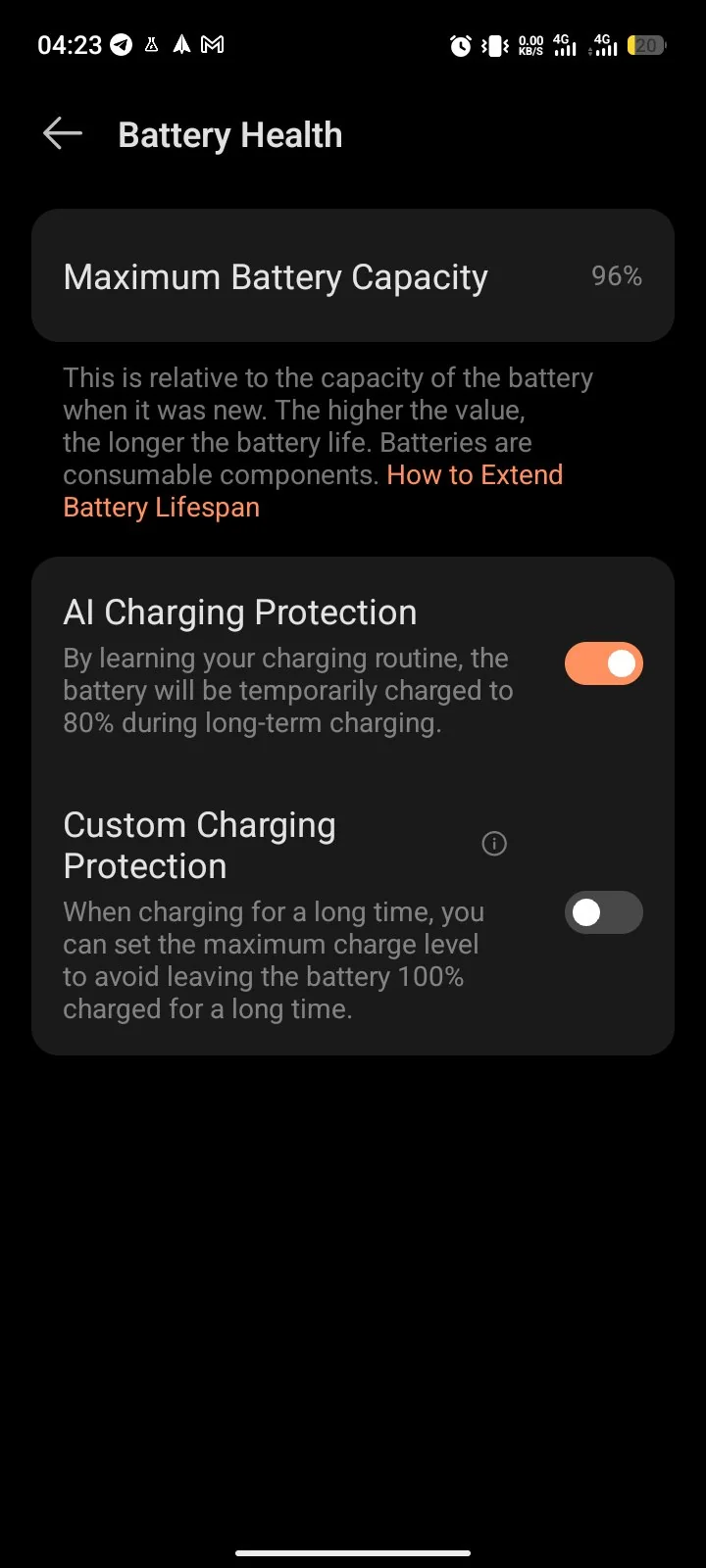
Charging damage comes down to heat and voltage stress over months, not one bad night. Battery University explains the mechanism: small discharges and mid-range charge levels give far more total cycles than repeated full 0 to 100 runs, and a topping charge after full is brief and safe because charging stops at full. So partial top-ups through the day are fine, and the 20-80% band is the gentlest daily range.
Second correction: the old post told you to unplug the phone when it is full. Delete that rule. Staying plugged in at 100% is safe, and Google even advises an occasional full overnight charge after draining under 10%. What is true is that full charges add more voltage stress than partial ones, so charging to 80% most days is gentler. That is a preference for longer life, not an emergency unplug rule.
- Aim for the 20-80% band in daily use, with occasional full charges when you need the range
- Let the phone idle while charging. Light use is fine, but skip gaming, streaming, video calls, and navigation until you unplug
- Turn on long-charge optimization where your phone offers it. On Pixel it is called Adaptive Charging, and it holds the charge so the phone reaches 100% about one hour before you need it
- On fast and wireless charging, expect some heat as normal, per Samsung. If the phone gets hot, unplug and let it cool, and stick to certified chargers and cables
- Charge and store the phone at moderate temperatures, away from sun, heaters, and hot cars
For the full charging walkthrough, see my post on 7 Charging mistakes that are damaging your phone battery.
Frequently asked questions
Does low current damage the battery?
No. Low current slows charging but does not damage the battery. Use a suitable charger and cable that can deliver what your phone asks for.
Do power banks kill phone batteries?
I could not verify this against Google or Samsung pages, so take it as opinion: a good, compatible power bank is fine, while a bad or mismatched one can cause heat and port problems.
Does a bad battery slow the phone down?
What is documented is heat throttling: when the phone gets hot, it slows the processor and charging to protect itself, so the phone feels slow and charges slowly. I found no primary source saying an aged battery alone slows the phone, so I tie the slowness to heat, not age.
Is using the phone while charging bad?
Light use while charging is fine. Avoid heavy tasks like gaming, streaming, and video calls while plugged in, because that combination adds the most heat. If the phone gets too hot or the cable is damaged, stop and unplug.
Is it bad to charge multiple times a day?
No, if you do it right. Short top-ups inside the 20-80% band, a good charger and cable, light use while plugged in, and a cool spot will help the battery last longer.
Bottom line
To recap: heat wears the battery fastest, heavy apps and weak signal add heat and drain, drops and bad chargers create real safety risk, the screen deserves your attention with adaptive brightness left on, and gentle 20-80% charging with idle time beats any unplug-at-full ritual.
Follow these habits and your battery will hold up longer. If this helped, share it with someone whose phone is always hot, and check the related guides below: 7 Charging mistakes that are damaging your phone battery, and 15 Unexpected Ways to Improve Battery Life on Android Devices.
Comments
2 approved · new posts held for reviewCouldn't load comments - the thread service didn't answer.