 By
By 
You deleted photos. You uninstalled apps. The storage bar barely moved. The photos were never the main problem. App cache, the WhatsApp folder that keeps filling silently through auto-download, and leftover files from apps you removed months ago are what hold the space. Most of them never show up where you would look for them.
Storage problems are one of 16 common Android issues covered in our Android problems fix guide.
I checked storage on a Tecno Camon 15 Air (Android 10, 64GB) and a Tecno Spark 40 (Android 15, 128GB) using Files by Google. Both devices had an average of 12GB of recoverable data that did not appear on the standard storage screen.
The steps below clear each category in order, starting with what typically takes the most space.
Quick Summary: Android Storage Full After Deleting Files
The usual culprits. Most of these stay off your storage screen:
- WhatsApp media: often 3 to 15GB in a folder that keeps refilling silently through auto-download
- App cache (Instagram, Chrome, YouTube): can reach several GB across all apps
- Leftover folders: files kept in old shared-storage folders by apps you uninstalled, and Android never removes them from there
- Trash bin: deleted photos still count as used storage for 30 days
- Downloads folder: forgotten installers and files piling up invisibly
Start here: Files by Google → Clean. It finds and sizes most of these in under 60 seconds.
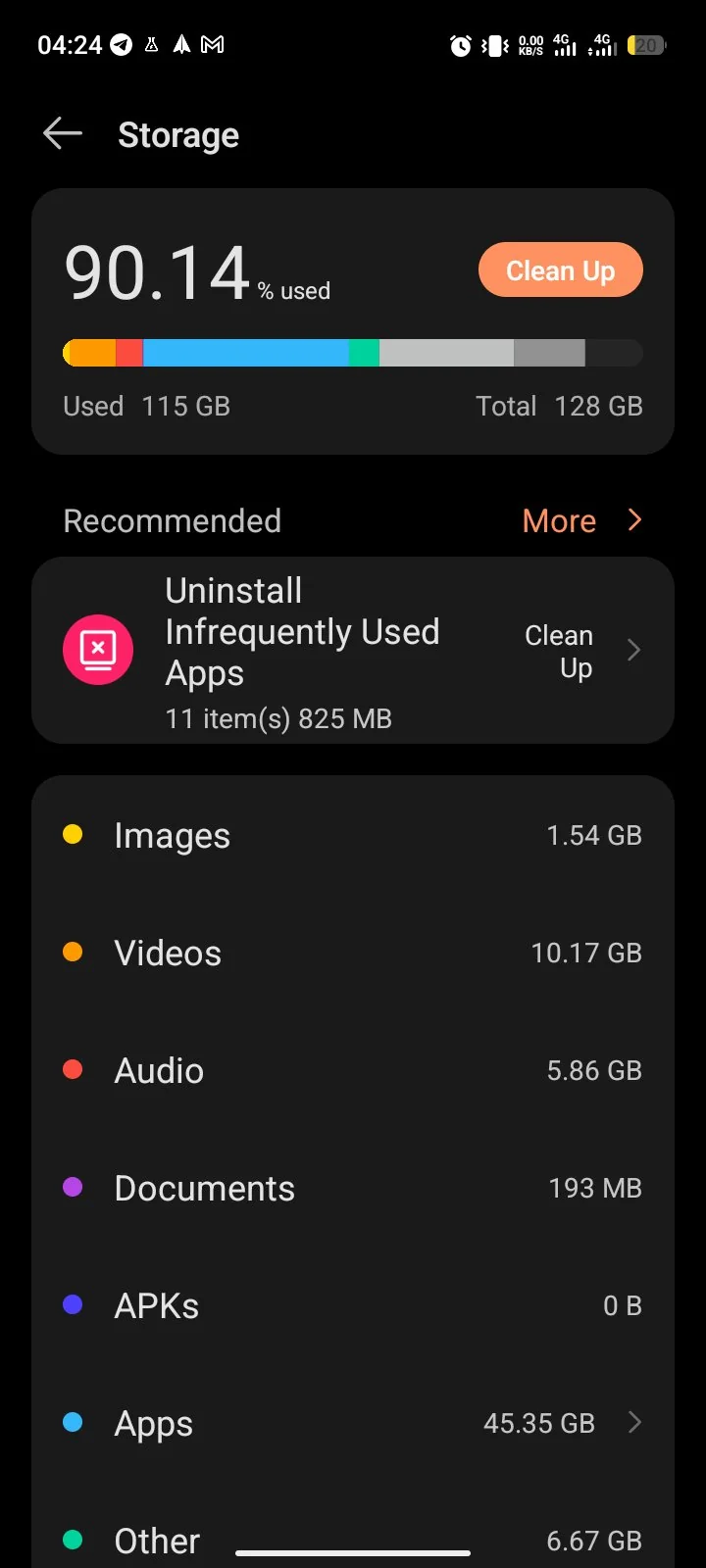
What’s Actually Taking Up Your Storage
Your storage screen shows the headline number and nothing else. This is what is really filling the phone underneath it.
| Category | What’s Inside |
|---|---|
| System (fixed, unavoidable) | 10 to 15GB. Android OS, system apps, core files. Cannot be reduced without rooting. |
| Apps | 15 to 25GB. Includes the app file and all its stored data. Heavier than most people realise. |
| Photos and Videos | 5 to 15GB. What you delete first. Rarely the biggest problem. |
| Hidden / Other (recoverable) | 5 to 15GB. App cache, WhatsApp media, leftover folders, Downloads, temp files. Average 12GB recoverable on our test devices. |
Open Files by Google Before Deleting Anything
Before clearing anything, run the diagnosis. Files by Google shows exactly what is hiding, category by category, with real sizes.
- Open Files by Google (install free from the Play Store if not already on your phone)
- Tap Menu → Clean
- You will see Junk Files, Large Files, and Duplicate Files, each with its total size
- Tap Junk Files to see app cache and temp files across all installed apps
- Do not clear everything yet. Review each category first so you know what you are removing
Rule of thumb: keep at least 10 to 15 percent of total capacity free. That is what we tell our own phones and it is the advice most Android guides repeat, but no official spec backs the exact number. Google documents the update problem: when storage is full, system updates cannot install and the system throws a “not enough space available” error while trying to unpack the update. On a 128GB phone, 13 to 19GB free is the zone where both problems disappear. (Google Support: storage-related update errors)
6 Fixes Ordered by Typical Space Recovered
Fix 1: Wipe App Cache Across Every App
App cache builds silently. On our test devices we watched Instagram, Chrome, YouTube, and Spotify each hold 2 to 5GB of temporary files. Files by Google clears all of it at once.
- Files by Google → Menu → Clean → Junk Files
- Review the total shown. This is recoverable cache across all installed apps.
- Tap Clean, then confirm with Clear
Your apps still work normally. Your photos stay untouched. Your logins stay saved. Cache rebuilds itself gradually as you use each app. One warning from Google: cleared junk files are gone permanently. There is no trash bin to recover them from, so review the list before you confirm.
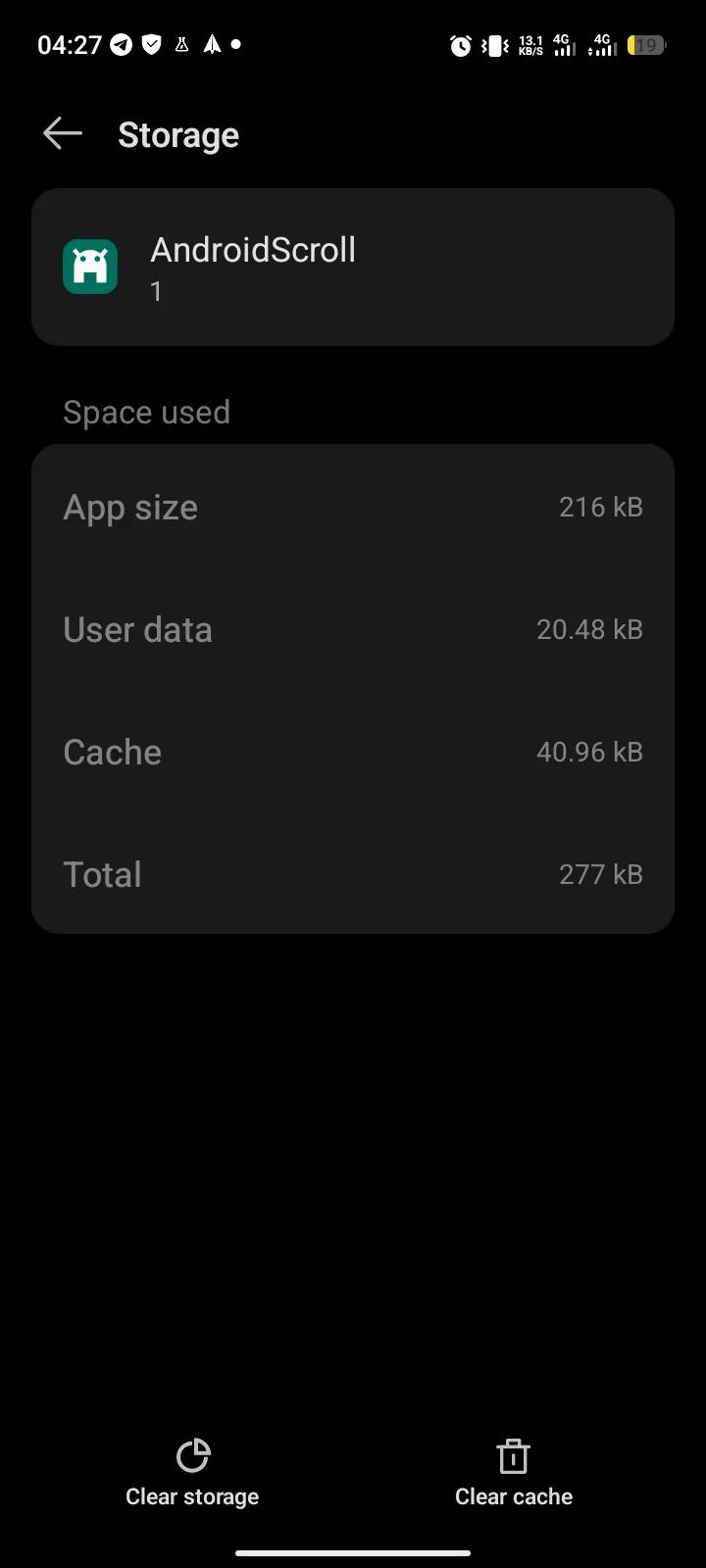
Warning: Tap Clear cache, not Clear storage. Clear storage (also labelled Clear data) resets the app entirely. It deletes saved logins, settings, and all downloaded content. These are two different buttons. Check the label before tapping.
Fix 2: Drain WhatsApp’s Media Folder
WhatsApp saves every photo, video, voice note, and forwarded file it receives straight into your phone’s storage. Its media visibility option is on by default, so these pictures do show up in your gallery. Auto-download keeps the folder filling silently with every group forward, even if you never open the chat or look at the gallery. If you are in active group chats, this folder commonly holds 3 to 15GB.
Since Android 11 the folder lives at Android/media/com.whatsapp/WhatsApp (older Androids: WhatsApp/ in the storage root). Standard file managers can read it fine. Still, WhatsApp’s in-app Manage Storage is the best tool for the job because it sizes and sorts the media by chat for you.
- Open WhatsApp → three-dot menu → Settings → Storage and data → Manage storage
- WhatsApp sorts chats by storage used, with the biggest at the top
- Tap a chat → select media → tap the trash icon to delete
- Use the Forwarded many times and Larger than 5 MB filters at the top. These two categories are usually the largest and the easiest to clear.
Fix 3: Empty Your Trash
A deleted photo does not go away. It moves to a trash folder, sits there for 30 days, and counts fully against your storage the entire time. Most users never empty it.
- Google Photos: Collections → Trash → menu → Empty trash → confirm
- Samsung or Tecno Gallery: three-line menu → Trash → Delete All → confirm
Fix 4: Clear the Downloads Folder
The Downloads folder collects every file you have ever saved from a browser or messaging app: APK installers, ZIP files, PDFs. They pile up invisibly for years. Most users have never touched it.
- Files by Google → Browse → Downloads → tap the three-dot menu → Sort by Size
- Delete the largest files first. APK installers, ZIP archives, large PDFs.
- Clear the rest you no longer need.
Fix 5: Chase Down Leftover Files
I used to get this wrong. When you uninstall an app, Android does remove its app-specific data, including the Android/data folder, automatically. The leftovers that actually eat your storage are different. They are the folders apps created in the shared area back when that was allowed, like the old WhatsApp/, Tencent/, or game and brand folders sitting in the storage root, plus whatever that app saved into Downloads. Android never removes those, and they pile up over years.
- Files by Google → Browse → Internal Storage and look through the storage root for folders belonging to apps you have uninstalled
- Tap and hold the folder → select → Delete
- Check Downloads again with fresh eyes. Files an uninstalled app saved there are not removed when the app goes.
- Still not sure what belongs to what? Plug the phone into a PC over USB and browse the same folders from the computer. Some makers hide parts of the tree from your phone’s own file manager but still show them over USB.
Two honest notes. On Android 11 and above, no file manager app can browse Android/data on the phone itself; the platform blocks it for every app. That means there is no “Allow” button to hunt for and the folders there are not your problem anyway. If your phone still runs Android 10 or older, you can open Android/data in any file manager and delete folders of apps you no longer have, and nothing else in this fix changes. Do not delete folders for apps you still use.
Fix 6: Back Up Photos and Strip the Local Copies
Google Photos backs up your library to the cloud, then removes the full-resolution copies from the phone. You still see and search every photo inside Google Photos; they just load when your phone is online.
- Google Photos → profile icon → Photos settings → Backup → toggle On
- Wait until the status reads Backup complete. Do not skip this step.
- Tap your profile photo again → Free up space on this device → confirm the amount shown
If Google Drive’s free 15GB runs out, other cloud options give better value.
Stop It Filling Up Again: 3 Settings That Make a Difference
Clearing space is step one. Keeping it clear is step two.
Turn on Smart Storage. Settings → Storage → Free up space → Menu → Settings → Smart Storage on. It deletes photos from your phone only when all three conditions hold: the photo is older than 60 days, already backed up, and your device storage has dropped below 25 percent free. So it kicks in when space runs low, not flatly every 60 days. Tecno HiOS: look for a similar auto-clean option under Phone Master.
Kill auto-download in WhatsApp and Telegram. WhatsApp: Settings → Storage and data → under Media auto-download, uncheck Photos, Audio, Video, and Documents for both Mobile data and Wi-Fi. Telegram: Settings → Data and Storage → Auto-download media → Off. Both apps download every image and video in every group automatically. Turning this off stops the media folder from refilling within days of cleaning it.
Stream instead of storing at maximum quality. Spotify offline at Normal quality uses 40MB per hour. Very High uses 150MB, three and a half times more. Casual listeners cannot tell the two qualities apart anyway. Stream on Wi-Fi when you can instead of keeping full-quality downloads stored permanently.
When Cleaning Is Not Enough: Time to Expand
If your storage sits above 85 percent after a full cleanup, you need more space, not more cleaning.
A MicroSD card expands storage cheaply. Check your model’s official spec page before buying a card. Many current Tecno phones support microSDXC cards well beyond 512GB, up to 1TB. Speed class affects app and photo performance, so choose the card carefully.
One Thing NOT to Do
Do not factory reset your phone because storage is full. Every fix above recovers space without touching personal data. A factory reset wipes all your photos, apps, messages, and accounts. Exhaust every step above first.
Frequently Asked Questions
Why is my Android storage full after deleting photos?
Photos you delete go into a trash folder instead of being deleted for good. Google Photos and Samsung Gallery keep deleted photos for 30 days and they count against storage the entire time. Empty the trash: Google Photos → Collections → Trash → menu → Empty trash. Then check your WhatsApp storage and Downloads folder. The photos were not the main problem.
What is taking up all my storage on Android?
Open Files by Google and tap Clean to see your breakdown. The usual suspects by size: WhatsApp media 3 to 15GB, app cache 3 to 8GB, system files 10 to 20GB unavoidable, Downloads 1 to 5GB, leftover folders from uninstalled apps 1 to 3GB. Most of these never show in your photo gallery, which is why deleting photos did not help.
How do I free up storage without deleting apps?
Clear app cache through Files by Google → Clean → Junk Files. Delete WhatsApp and Telegram media via each app’s own storage manager. Empty the trash in Google Photos. Clear the Downloads folder. These steps typically recover 10 to 30GB without removing a single app. Cache clearing takes one tap and leaves all personal data untouched.
Does clearing cache delete anything important?
No. Cache is temporary data apps generate to load content faster. Clearing it removes only those temporary files. Settings, logins, saved content, and personal data stay completely untouched. Clear storage, the other option, resets the app entirely and does delete personal data.
Can I move apps to an SD card on Android?
The move-apps-to-SD feature still exists in Android, but on Android 10 and above most makers hide it and few apps allow the move, so treat it as unsupported. Use your MicroSD for media storage only: photos, videos, music, offline maps. Check your model’s spec page. Many Tecno phones support cards well beyond 512GB for media use. Apps stay on internal storage for best performance.
Why does my storage fill back up so fast after I clean it?
Auto-download in WhatsApp and Telegram refills the media folder within days. Both apps download every image and video in every group automatically. Disable it: WhatsApp → Settings → Storage and data → Media auto-download → uncheck Photos, Audio, Video, Documents for Mobile data and Wi-Fi. Telegram → Settings → Data and Storage → Auto-download media → Off. Then turn on Smart Storage.
How much free storage should I keep on Android?
Keep at least 10 to 15 percent of total capacity free. That is a rule of thumb rather than an official spec, but one hard consequence is documented. System updates cannot install when storage is full. On a 128GB phone, 13 to 19GB free at all times keeps updates flowing and gives the phone room to breathe. If you consistently drop below that after cleanup, expand your storage instead of cleaning harder.
The Bottom Line
The storage screen only shows you the headline number. App cache, WhatsApp media quietly refilling through auto-download, and leftover folders from old uninstalls are almost always the real problem, and none of them show up in your photo totals.
Open Files by Google → Clean right now and check the Junk Files total. Then go straight to WhatsApp’s storage manager. Those two steps alone recover the most space for most people.
What was hiding the most on your phone? Drop it in the comments, especially if WhatsApp’s number surprised you. And if storage was not your only issue, our Android problems fix guide covers every other common problem in one place.
Comments
New posts held for reviewCouldn't load comments - the thread service didn't answer.