 By
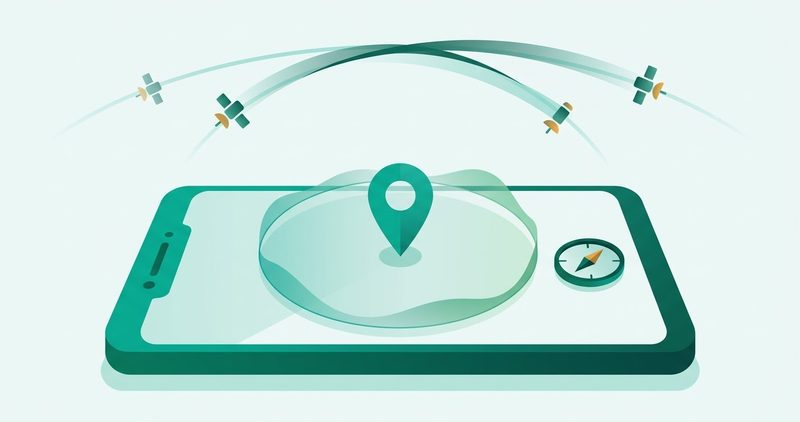
Your dot sits on the wrong street, and every old guide tells you to pick High accuracy from a menu that no longer exists. Here is what the screens look like now, symptom by symptom.
There are two faults people call GPS broken: a position fault and a direction fault. This page tells you which one you have first. The sections below cover the accuracy controls, the compass, background battery kills, stale assist data, and the case. Two limits are stated here so nothing later reads as a promise. There is no indoor accuracy figure, because controlled indoor drift did not reproduce on the test phone. There is no antenna verdict either, because a low satellite count under clear sky is a hardware question software alone cannot settle.
Google's Location Accuracy help page explains that when enabled, the service uses GPS, wireless signals, and device sensors to improve location accuracy. It helps most indoors, or where GPS signals are obscured (Google Support).
Which lost are you
Start here. Pick your symptom and go to the right section. This saves time because each fault has its own cause. The complete Android problems fix guide gives a short summary.
| Symptom | Fault class | Go to |
|---|---|---|
| Dot sits on the wrong street or jumps between houses | Wrong position from settings, sky view, or stale Wi Fi data | Accuracy ladder |
| Maps stops tracking after 30 minutes or on every ride | Phone kills the location app to save power | Signal drops mid trip |
| Dot is right but the arrow points the wrong way | Compass error, not GPS error | Arrow spins section |
If two symptoms mix, fix position first, then direction. A spinning arrow means nothing until the dot is stable.
The old mode name is gone, here is what replaced it
This is the correction most guides miss. Android P, released in 2018, removed the Location Mode menu with its three options High accuracy, Battery saving, and Device only. Android Police reported it on 8 March 2018 as a binary setting. There is no Mode screen to open on a current phone.
So when an old video or post tells you to open Settings → Location → Mode and pick High accuracy, that screen does not exist. High accuracy maps to Google Location Accuracy or Improve Accuracy, switched on. Battery saving and Device only are gone as separate ideas. Wi Fi scanning, Bluetooth scanning, and full location permission cover them.
Two pages still show the dead path. Strava support, 21 September 2026, and Esper, 3 December 2024, both describe the retired Mode menu. On my phone, open Settings and use the search box. Type Location Accuracy and open the result. Do not follow Galaxy or Pixel menu trees on HiOS.
The accuracy ladder, in order
Work this ladder for a wrong dot. Stop when the dot settles. Each step is small and each step is tested.
- Switch on the accuracy toggle. On HiOS use Settings search for Location Accuracy and switch it on. This adds Wi Fi, mobile networks, and sensors to satellites.
- Switch on Wi Fi scanning and Bluetooth scanning. On my phone use Settings search for Scanning and switch both on. Google documents these in support article 2839911. They help even when Wi Fi itself is off. Apps can check these same settings and prompt you to flip them (Android Developers).
- Give the phone sky. Step outside, away from tall walls, and keep Maps open for one to two minutes. Indoors the dot can sit 10 to 50 meters off. Outdoors a good phone settles to about 3 to 10 meters.
- Grant precise permission to the app. Long press the Maps icon → App info → Permissions → Location, with Use precise location switched on. The pillar procedure covers this path. Test with a second app. If a second map app is right, clear Maps cache.
- Note the stale Wi Fi case. Samsung UK, 10 September 2021, explains Google stores server side Wi Fi position data that can go stale after network changes (Samsung Support). Samsung states this is not a device defect. If the dot is wrong only on home Wi Fi, forget and rejoin the network, then retest outdoors.
Arrow spins but dot is right, fix the compass
This fault is direction, not position. The compass sensor sets the arrow. Satellites set the dot. Keep them apart.
Do the figure 8 move. Open Google Maps, hold the phone flat, and move it in a figure 8 three to four times. Google documents this in support article 2839911. Pocket Lint, 30 March 2024, shows the same move plus Live View where supported. Walk 10 meters in a straight line to confirm.
Now the magnet half. Nillkin, 14 February 2025, states magnetic cases do not harm GPS signal but can affect the compass. An October 2025 hunttalk thread matches this. Test it. Calibrate with the case on, remove the case, calibrate again. If the arrow holds only with the case off, the case magnet is the cause.
One honest line for skeptics. Reddit threads call the figure 8 ritual absurd. The reply is narrow. The move fixes direction only. It never moves the dot.
Signal drops mid trip, check battery kill first
This is the most common cause of a track that dies mid trip. The phone kills Maps or Google Play services in the background to save power. A Reddit Galaxy S23 thread and an Airdroid guide updated 24 July 2026 both name this as the top cause.
On my phone, with Maps installed, use Settings search, since HiOS moves these between versions:
- Search Battery optimization or Battery usage. Set Google Maps to Unrestricted or Allow background activity. Set Google Play services the same way.
- Search Autostart or App startup. Allow Maps to auto start so it restarts after the system clears it.
- Switch Battery Saver off before a long trip. Also check Data Saver. If Data Saver blocks background data for Maps, location uploads stall. The full procedure lives in our guide to mobile data draining fast. Power behavior as a whole lives in our full guide to battery drain.
- Keep Maps in the foreground on long rides. For delivery work this is income protection.
Do not follow an untested HiOS battery path from a Xiaomi, Huawei, Oppo, or OnePlus guide. If a toggle named here does not appear on your HiOS version, use the closest Settings search result and stop. Carlcare global, 13 December 2020, carries one real Transsion nuance worth credit. Long press the HiOS or XOS logo to reach Safe Mode.
Slow first fix, refresh the assist data
Satellites are slow on a cold start. Phones use assist data over the network to lock faster. When that data goes stale after an update or long storage, the first fix drags. Fairphone and OnePlus forum threads document the same manual refresh.
Steps. Install a free tool such as GPS Test. Go outside with mobile data or any Wi Fi on. Open its menu and use Clear AGPS, then Update or Download. Wait two minutes with sky view. Samsung UK notes that without data roaming abroad the fix runs slow, and any Wi Fi helps.
Use the satellite count as a free diagnostic. Airdroid states the rule: outdoors, 8 or more locked satellites is good. Fewer than 4 repeatedly, across days and places, points at an antenna suspect. No app repairs an antenna. No install fixes hardware.
The case test and the chipset line
Cases fail in two ways. Magnets bend the arrow. Thick metal starves the signal. Test each once.
| Case type | Symptom | Test |
|---|---|---|
| Magnetic folio, magnetic mount plate | Arrow wrong, dot right | Figure 8 with case on, then case off, compare |
| Thick metal bumper or rugged metal shell | Dot wrong, weak lock, few satellites | GPS Test count outdoors with case on, then case off, compare |
Three vendor sides agree. Bwoohk, March 2026, states magnetic mounts do not hurt GPS accuracy while thick metal cases can attenuate it. Nillkin, February 2025, states the compass half. Newcase, March 2026, matches. Airdroid conflates the two. The tests above correct it by demonstration.
One line on the chipset myth. A recent repair clip claims a Tecno with MediaTek can hear only the GPS fleet. MediaTek announced 5 in 1 multi GNSS in 2013, covering GPS, BeiDou, GLONASS, Galileo, and QZSS. Orbitalradar dated 1 September 2026 confirms modern MediaTek chips hear all four civilian fleets. On a Tecno the limit is antenna and software, not constellation support.
What I tested on my phone, and what I could not reproduce
Device is my phone. Every path below was walked on that phone with Maps installed.
Confirmed. Location Accuracy toggle through Settings search, on. Wi Fi and Bluetooth scanning toggles through Settings search, on. Figure 8 in Maps, arrow followed after two passes. Case on and case off retests outdoors. Battery unrestricted for Maps and Play services. Autostart allowed for Maps.
Could not reproduce. Controlled indoor drift as a lab result, so no indoor figure appears here. The hand off in the complete Android problems fix guide section 12 stays as the short summary.
Questions readers ask
Can I still switch on High accuracy mode?
No. That menu ended with Android P in 2018. Search Settings for Location Accuracy and switch on the current toggle.
My dot is right but the arrow spins, is GPS broken?
No. That is compass error. Do the figure 8 move. It fixes direction only.
Does my magnetic car mount kill GPS?
No for signal, possible for compass. Bwoohk and Nillkin agree. If the arrow alone is wrong near the mount, move the mount or change the case.
Why does Maps place me at my neighbor house on Wi Fi?
Stale server side Wi Fi position data, Samsung UK says (Samsung Support). Forgetting and rejoining the network plus an outdoor retest usually clears it.
GPS dies on every ride after three hours, is it hardware?
Almost always battery optimization killing Maps mid trip. Set Maps and Play services to unrestricted and allow autostart. See the battery section above.
My Tecno hears only GPS satellites, true?
False. MediaTek supports four fleets since 2013. Antenna, case, and software set your count, not the chipset brand.
Do I need a GPS repair app?
No. Use GPS Test for the free satellite count and for assist data refresh. No install repairs an antenna. If the count stays low everywhere with the case off, get a repair quote. For spoof and fake location checks, see How to Stop Malware From Destroying Your Phone.
Comments
New posts held for reviewCouldn't load comments - the thread service didn't answer. Nothing is being hidden: no approved comments are saved with this page.
No approved comments yet - the first one is yours. New posts are held for review before they appear.