 By
By 
Is your phone acting strange?
The battery drains fast.
It gets hot for no reason.
Your data finishes quickly.
Apps open or close on their own.
You get bombarded with intrusive adverts.
That’s not normal.
Phones can get malware just like computers. And today, hackers target phones more because they store banking apps, passwords, photos, and private messages.
The good news is this: malware shows signs.
In this guide, you’ll learn how to tell if your phone has malware, what to do right away, and how to clean it safely, step by step.
No tech skills needed.
Let’s fix it.
Phase 1: The Diagnosis (5 Warning Signs of Phone Malware)
Before fixing anything, you need to confirm the problem.
Malware almost always leaves clear signs. Check these one by one.
1. Battery Drains Extremely Fast
If your battery drops quickly even when you’re not using your phone, something may be running secretly in the background.
Red flag: Battery dies fast after full charge with light use.
2. Phone Gets Hot While Doing Nothing
A warm phone during gaming or charging is normal. A hot phone while idle can mean something is working in the background, but heat alone usually points to the battery, charging, or a hot environment. I only treat it as a malware warning when it shows up alongside other signs on this list.
Red flag: Phone heats up while locked or sitting in your pocket, plus one or more signs below.
3. Mobile Data Disappears Quickly
Malware often sends data to remote servers in the background.
Red flag: Data usage climbs even when you’re not browsing or streaming.
Check it on Pixel stock Android in:
Settings → Network & internet → SIMs → App data usage
4. Messages or Links Sent Without You
Friends complain about strange links coming from you? That’s serious.
Red flag: WhatsApp, SMS, or social apps sending messages you didn’t send.
5. Apps You Don’t Remember Installing
Some malicious apps hide their icon or use a fake name.
Red flag: Unknown apps, blank app names, or apps without icons in your app list.
Important Note
Seeing one sign alone doesn’t always mean malware. As a rough rule of thumb, two or more signs together are a stronger reason to run the checks below. It’s a guide, not a diagnosis.
If any of these feel familiar, don’t panic. The next phase shows exactly what to do.
Phase 2: Immediate Response (Recovery Guide)
One note before you start: steps below show Pixel stock Android. Samsung and others rename or move menus, so use Settings search if a name looks different on your phone.
If your phone is acting strange, follow these steps carefully to isolate and remove the threat.
Step 1: Isolate the Device
Immediately cut off internet access.
Turn on Airplane Mode. This disables:
- Wi-Fi
- Mobile data
- Bluetooth
It stops a malicious app from sending or receiving data while you remove it.
My advice: don’t power off the phone yet. Keep it on so you can locate and delete the problem. That’s my own working method, not a Google instruction, but the removal steps below need the phone on.
Step 2: Boot Into Safe Mode
Safe mode temporarily disables third-party apps you installed, so you can see if one of them is the cause. If the strange behaviour stops in safe mode, an installed app is likely behind it.
Exact buttons vary by phone maker. Google itself says restarting in safe mode varies by phone, so check your maker support page if these steps don’t match your model.
Method A (if the phone is on)
- Hold the Power button
- Touch and hold Power Off
- Tap OK when “Reboot to Safe Mode” appears
Method B (if the phone is off or Method A fails)
- Turn the phone on
- When the maker logo appears, press and hold Volume Down
- Keep holding until the lock screen appears
- You should see “Safe Mode” at the bottom of the screen
Step 3: Remove Special Permissions
Malicious apps often grant themselves advanced access so you cannot uninstall them normally. Clear those first.
A. Check Device Admin Access
Go to:
Settings → Security & privacy → More security & privacy → Device admin apps
(On Samsung: Settings → Security and privacy → Other security settings → Device admin apps. Or search “Device admin” in Settings.)
Turn off any app you don’t recognise.
B. Check Accessibility Access
Go to:
Settings → Accessibility → Installed apps
(The exact menu name varies by brand and Android version.)
If you see an unfamiliar app switched on here, switch it off.
Accessibility access lets apps read your screen and take actions. It’s commonly abused by malware.
Step 4: Delete the Suspicious App
Now that special permissions are removed, go to:
Settings → Apps → See all apps
Scroll carefully through the full list. Look for:
- Apps you don’t remember installing
- Strange or generic names
- Apps installed just before the problem started
Tap the suspicious app and select Uninstall.
If Uninstall is greyed out, double-check that its device admin and accessibility permissions are switched off, then try again.
Step 5: Run Google Play Protect
Before fully reconnecting to the internet, run a built-in security scan.
- Open Google Play Store
- Tap your profile icon
- Tap Play Protect
- Tap Scan
Make sure these are switched on:
- Scan apps with Play Protect
- Improve harmful app detection
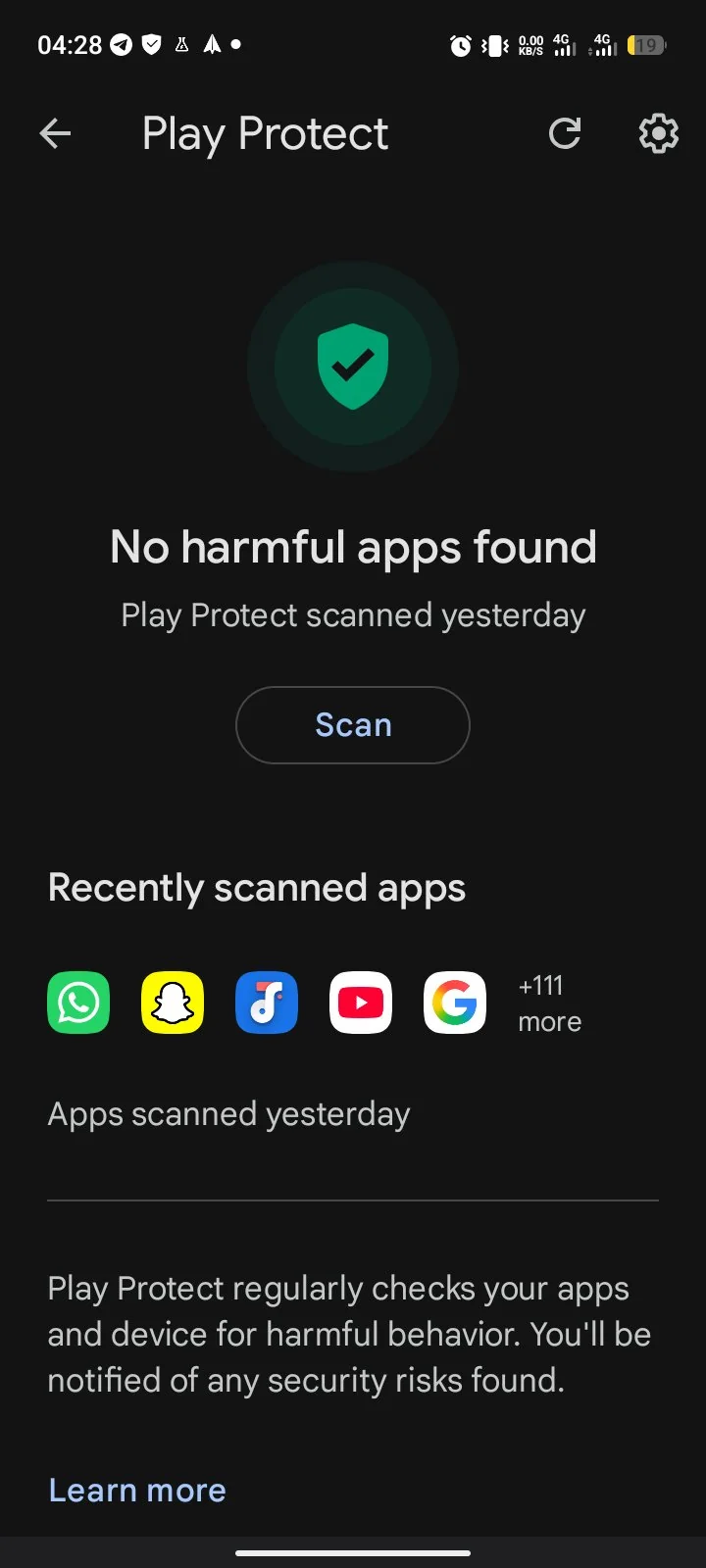
After reconnecting to Wi-Fi, you may add one trusted security scanner for a second opinion, such as Malwarebytes or Bitdefender. Use only one extra scanner, and skip the “cleaner” apps. Google’s official advice centres on Play Protect rather than third-party scanners, so treat this extra scan as optional.
When done, restart your phone normally and watch it for a day or two.
Phase 3: Deep Clean (When the Problem Will Not Go Away)
If your phone still acts strange after removing suspicious apps, time for a deeper cleanup.
Step 1: Clear Browser and Downloaded Files
Malware often enters through harmful websites or downloaded files.
Clear browser cache
Go to Settings → Apps, select your browser (Chrome, Brave, and the like), tap Storage & cache, then tap Clear cache.
This removes temporary files that may hold harmful scripts.
Check the Downloads folder
Open Files or File Manager, open the Downloads folder, and delete any APK files or files you don’t recognise. If you didn’t download it on purpose, remove it.
Step 2: Update Your Phone
Security updates fix weaknesses that malware uses to get in.
On Pixel stock Android: Settings → System → Software updates, then check for updates and install what is offered. On Samsung: Settings → Software update. Then restart your phone.
Step 3: Factory Reset (Last Resort)
If the problem continues, a factory reset is the most reliable fix left.
It wipes apps, settings, and files, and removes user-level malware in almost all cases. A reset cannot guarantee every deeply hidden threat is gone, and restoring an infected backup can bring the problem back, so back up with care and set up clean.
Back up the right things
Before resetting, back up only:
- Photos and videos
- Contacts
- Important documents
Do NOT back up:
- Apps
- App data
- Full system backups
Restoring infected apps can bring the malware back.
How to factory reset
On Pixel stock Android: Settings → System → Reset options → Erase all data (factory reset). Searching “Reset” in Settings also gets you there. Confirm and wait. The phone restarts like new.
After the reset
- Set up the phone as new
- Reinstall apps manually, only the ones you truly need
- Install apps only from Google Play
- Watch the phone for unusual behaviour for a few days
If the issue doesn’t return, the malware is gone.
Phase 4: Security Hardening (Make Your Phone Stronger)
Now that your phone is clean, the goal is simple: stop this from happening again.
1. Install Apps Only from Google Play
Avoid:
- APK files from random websites
- “Mod” or cracked apps
- Pop-ups that say “Update Required”
If a website asks you to download an APK manually, close it.
Keep “Install unknown apps” switched OFF. You can check it in:
Settings → Apps → Special app access → Install unknown apps
Only download apps from trusted developers.
2. Review App Permissions Regularly
Apps should only access what they truly need. To check, go to:
Settings → Privacy → Permission manager
Review access to:
- Camera
- Microphone
- Location
- SMS
- Contacts
If an app holds a permission that makes no sense, remove it. A calculator app does not need your contacts.
3. Keep Your Phone Updated
System updates are security fixes. Switch on automatic updates so you don’t fall behind. Also update apps regularly from Google Play. Old apps are easier to exploit.
4. Keep Google Play Protect On
Make sure it stays active: open Google Play Store, tap your profile icon, tap Play Protect, and confirm scanning is switched on. It adds a steady layer of protection against harmful apps.
5. Use a Strong Screen Lock
Protect your device in case it is lost or stolen. Use a PIN with 6 digits or more, a strong password, or fingerprint or face unlock. Skip simple patterns.
Check in:
Settings → Security & privacy → Device unlock → Screen lock
6. Switch On Theft Protection Features (If Available)
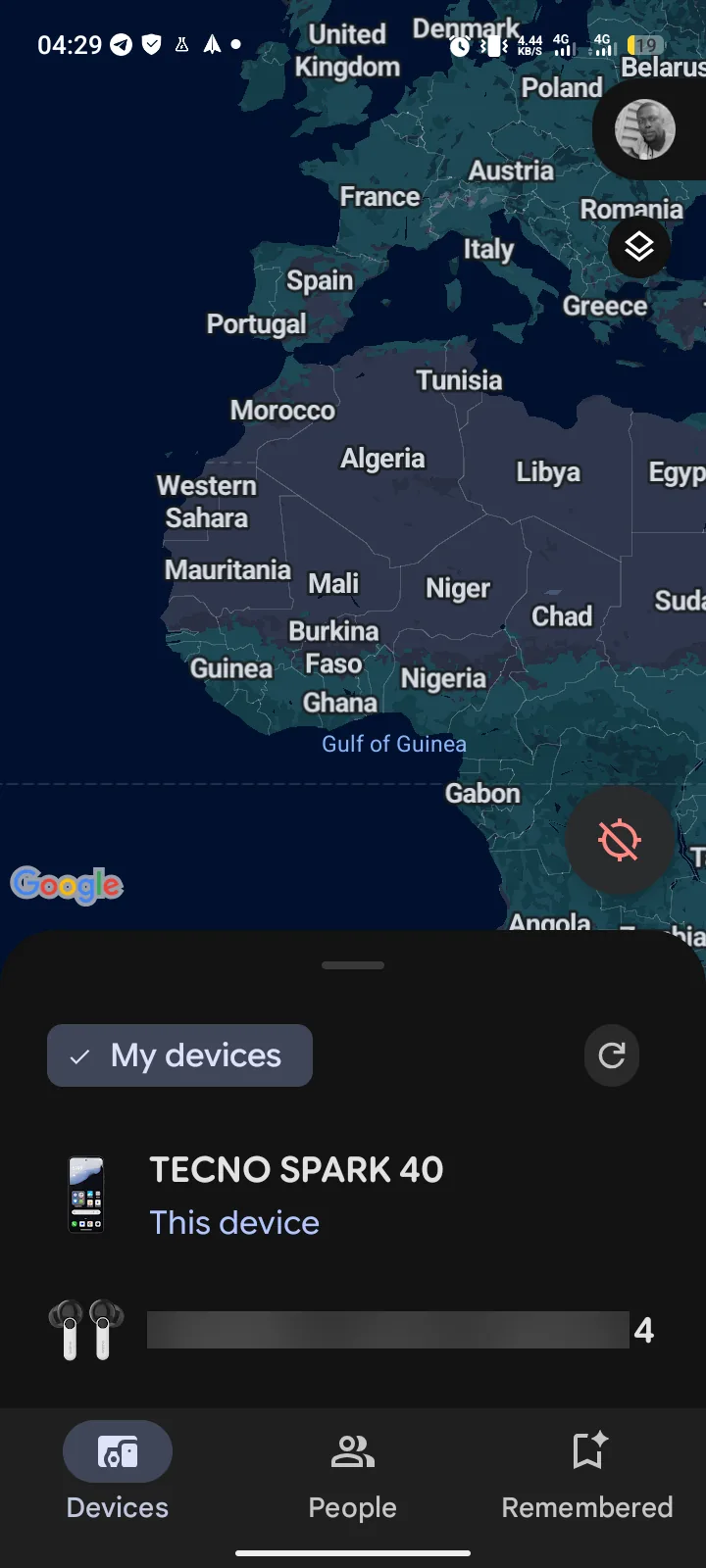
Many modern Android phones include Theft Detection Lock and the Find Hub device finder (the 2026 name for what used to be called Find My Device).
Switch them on in:
Settings → Google → All services → Theft protection
That lets you locate, lock, or erase your phone remotely if needed.
Phone security is not a one-time task. It’s a habit. Install carefully. Grant permissions wisely. Update regularly.
Stay Alert, Stay Protected
Phone malware is more common than many people think. But it’s also preventable.
If your phone starts acting strange, overheating, draining battery fast, using too much data, or sending messages you didn’t write, don’t ignore it. Check it right away.
You now know how to spot the warning signs, isolate the device, remove suspicious apps, deep clean your phone, and lock down your settings.
Most infections come from unsafe downloads, too many permissions, or skipped updates.
Good phone security is not about fear. It’s about smart habits. Install carefully. Review permissions. Keep your phone updated. Do that, and your phone stays clean.
Have you ever found a suspicious app on your phone? Share how you noticed it in the comments below. Your story could help someone else.
Comments
4 approved · new posts held for reviewCouldn't load comments - the thread service didn't answer.